Basic User Messages - Voicemail
4.1 Voicemail tab
Clicking the Message Center icon as see in figure 4 will take you to the Messages center voicemail tab as seen in figure 4.1. On the top of the tab, you will see a new message indicator showing how many (if any) new voicemails your account has as seen in figure 4.1.
Underneath the tab selection you will see a drop down as seen in figure 4.1.a, which allows you to display new voicemails, saved messages, or trashed messages.
On the new page you can see all your new voicemail messages displayed with the caller’s phone number. The Caller ID name, along with the date, time, and duration of the message as seen in figure 4.1.
To the right of the message and message information you will see the voicemail management options as seen in figure 4.1.b. 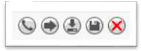 Figure 4.1.b
4.1.1 Call to Play
The phone icon allows you to use the Call to Play options where the system will call our extension and play the voicemail.
4.1.2 Forward Voicemail
The arrow pointing to the right allows you to forward the voicemail to another extension.
4.1.3 Download Voicemail
The Arrow pointing down allows you to download the voicemail to your computer.
4.1.4 Save
The disk icon as allows you to save the voicemail in your account Saved section and will appear when selecting the Saved option from the voicemail box options as seen in figure 3-4.
4.1.5 Delete
The red X as seen in figure 3-1-2 is the delete option and clicking the icon will remove the voicemail. Once a voicemail has been deleted it can not be recovered from the phone system. If your account is configured to send an email notification with voicemail attachment
Related Articles
Basic User - Voicemail Setup
Voicemail Setup: Please make sure to download and save any current voicemails in your existing system before setting up your new voicemail. Your current saved voicemails will NOT be saved once you switch over. 1. Once you are logged into your ...Basic User Messages - Settings
4.3 Settings tab The settings tab as seen in figure 4.3. is where you can make changes to how your account handles voicemail and is represented in the company audible directory and in the Contacts of the organization. Figure 4.3 4.3.1 Enable ...Basic User Messages - Chat
4.2 Chat tab 4.2.1 Chat and SMS tab On the Chat tab you can see all your Chat conversations as seen in figure 4.2. The message is displayed with the contacts name. The last message received or sent. Figure 4.2.1 4.2.2 Start new conversation To start ...Basic User - Answering Rules
6 Answering Rules The Answering Rules icon as seen in figure 6 will take you to your answering rules center. Answering Rules are how you control what devices ring, how long those devices ring for when receiving a call. It is also where you can ...Basic User - First Time Login
RedCloud Portal Login Instructions: 1. Go to: https://portal.redcloud.us/portal/ 2. Your Username will be: your_extension@yourdomain.com · i.e.) 999@redcloud.us 3. Your initial Password should be in your welcome email ...